Headset Configuration
Jabra Headset Configuration
Prerequisites
Important Note: Jabra only supports integration with Chrome And Microsoft Edge.
-
Install the Jabra Browser Integration Extension for Chrome (currently named Jabra ChromeHost in the Chrome Web Store)
https://chrome.google.com/webstore/detail/jabra-browserintegration/okpeabepajdgiepelmhkfhkjlhhmofma -
Install the Jabra Device Connector Application on the Agent's PC
https://developer.jabra.com/downloads/EndUserRuntimes/SDK2/jabra-chrome-host2.1.0.msi.zip
Note: For awareness - previously these instructions stated to install the Jabra Direct application here. Jabra have moved their Device Connector part that supports the Jabra v2.1 API out of Jabra Direct to the above separate .msi.
Moving forward we will be transitioning the Cornerstone CX Jabra Headset integration to use their newer API version.
Cornerstone CX Jabra Headset Configuration
Modify User Template
- Login to Cornerstone CX Administration Portal.
- If you have more than one Environment configured within your Company in Cornerstone CX, make sure you have the appropriate one selected. This can be found on the top Navigation bar.
- Go to Contact Center Administration and select User Templates in the Users section.
- Click the check box next to the User Template you want to modify.
- Click the Modify button.
- Select General and click on Sounds and Video.
- The following settings should be configured:
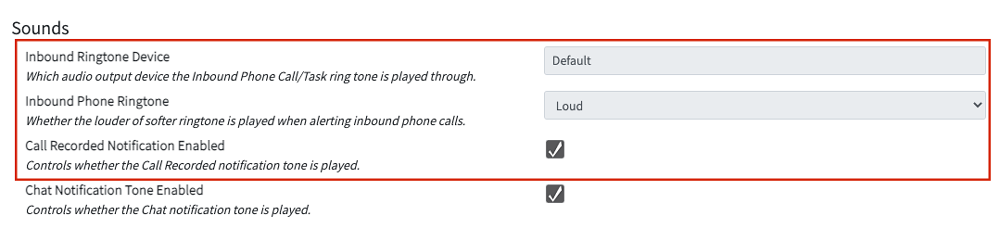
Inbound Phone Ringtone: If you leave it as default – the system will choose what you have configured on your pc.
Inbound Phone Ringtone: Determines whether the louder or softer ringtone is played when alerting inbound phone calls.
Call Recorded Notification Enabled: Determines whether the Call Recorded notification tone is played. - Scroll down to Headset and choose Jabra Headset.
- The following settings should be configured:
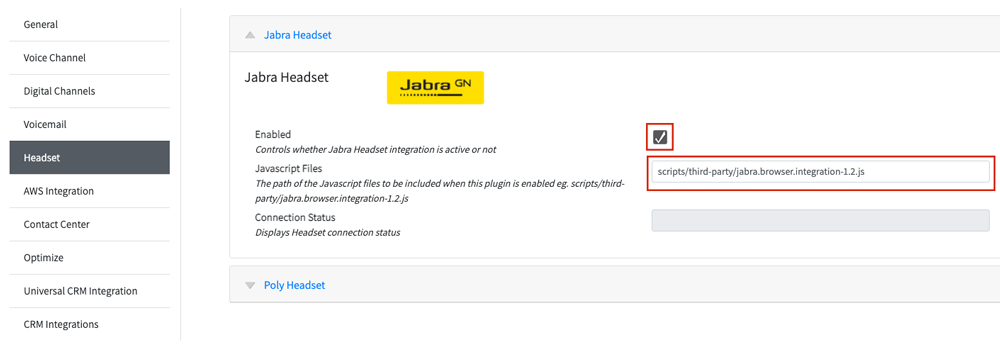 Enable: This setting allows you to activate/deactivate your Jabra headset integration Standard recommendation is “True”
Javascript Files:** Enter in the path listed below.
scripts/third-party/jabra.browser.integration-2.1.js
The path of the javascript files has to be included when this plugin is enabled. - Click Save.
Validate Headset Configuration on Cornerstone CX Client
- From the Cornerstone CX Administration Portal, click on Home in the left side navigation bar.
- Click on the URL under the heading Cornerstone CX User Shortcut.
- Cornerstone CX will launch. Click Sign In and you will see the Amazon Connect CCP launch.
- Login with your Agent Username and Password.
- Once Amazon Connect launches, click on the red Close Connect Login button to launch the client.
- The first thing you will see is a Jabra Jabra logo on the top left.
- Click on Settings button on the bottom left of the UI ans click on the Jabra Headset dropddown menu.
- Check the Connection Status is Connected.
Poly Headset Configuration
Prerequisites
- Install Poly Hub for Windows/Mac (formerly Plantronics Hub). This can be downloaded from Poly.
Cornerstone CX Poly Headset Configuration
- Login to Cornerstone CX Administration Portal.
- If you have more than one Environment configured within your Company in Cornerstone CX, make sure you have the appropriate one selected. This can be found on the Navigation bar to the left of the Function menu.
- Go to Contact Center Administration and select User Templates which is under Users.
- Click the check box next to the User Template you want to modify.
- Click the Modify button.
- Select General and click on Sounds and Video.
- The following settings should be configured:
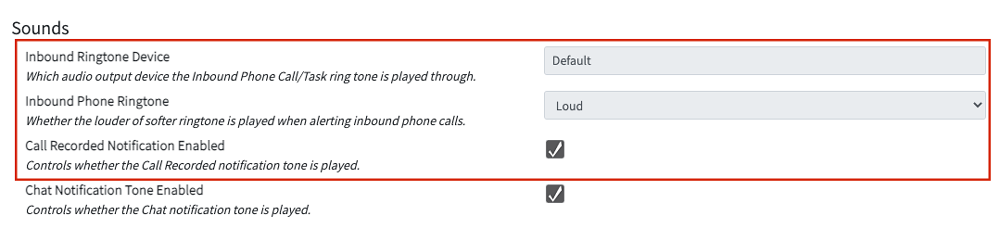
Inbound Phone Ringtone: If you leave it as default – the system will choose what you have configured on your pc.
Inbound Phone Ringtone: Determines whether the louder or softer ringtone is played when alerting inbound phone calls.
Call Recorded Notification Enabled: Determines whether the Call Recorded notification tone is played. - Scroll down to Headset and choose Poly Headset.
- The following settings should be configured:
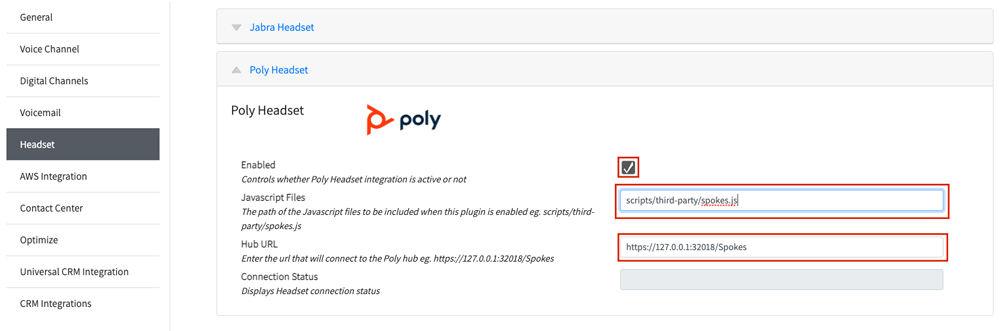
Enable: This setting allows you to activate/deactivate your Poly Headset integration Standard recommendation is “True”
Javascript Files: Enter in the path listed below in the text box. scripts/third-party/spokes.js
Hub URL: Enter the url that will connect to Polyhub.
https://127.0.0.1:32018/Spokes - Click Save.